

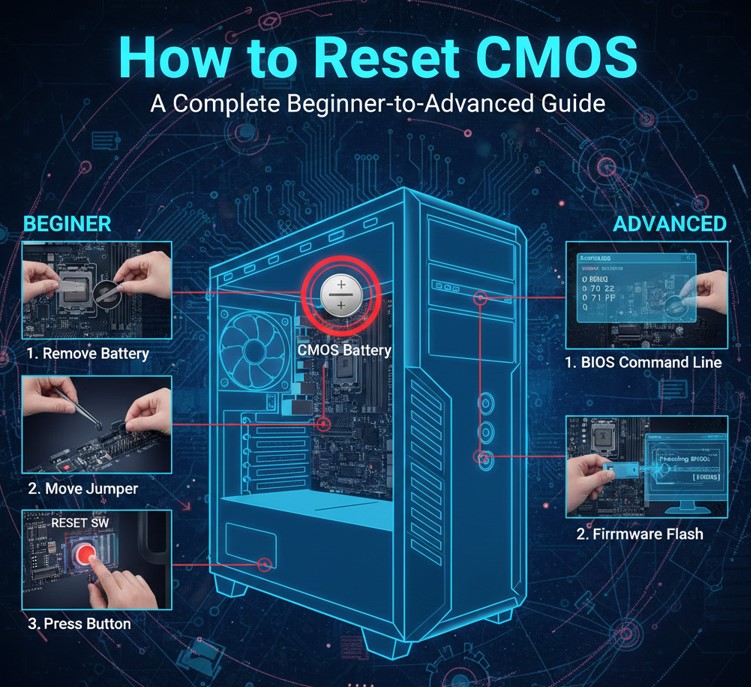
If your computer fails to boot, displays hardware errors, or behaves unpredictably after a BIOS change, learning how to reset CMOS can often solve the problem quickly. Resetting the CMOS restores your system’s BIOS or UEFI settings to factory defaults, clearing misconfigurations that may prevent your PC or laptop from functioning correctly.
This comprehensive guide is written from real technical troubleshooting experience and explains what CMOS is, why resetting it works, and how to reset CMOS safely across desktops, laptops, and popular motherboard brands like ASUS, MSI, and Gigabyte. Whether you’re a beginner or an advanced user, this article walks you through every method with clarity and confidence.
What Is CMOS and Why Resetting It Matters
CMOS (Complementary Metal-Oxide-Semiconductor) is a small section of memory on your motherboard that stores BIOS or UEFI settings such as boot order, system time, voltage configurations, and hardware parameters. It is powered by a small coin-cell battery even when your computer is turned off.
When incorrect BIOS settings are applied—such as unstable overclocking, incompatible RAM timings, or wrong boot configurations—the system may fail to POST (Power-On Self-Test). Resetting CMOS clears these stored settings and restores stability.
Why CMOS Reset Is Important
. Restores BIOS to Default Settings
Resetting CMOS removes faulty configurations and returns the motherboard to manufacturer-approved defaults, ensuring stable operation.
. Fixes Boot and POST Errors
Many “no display” or continuous reboot issues are caused by BIOS misconfigurations that CMOS reset can instantly resolve.
. Solves Hardware Detection Problems
Incorrect CMOS data can prevent the system from recognizing RAM, GPU, or storage devices properly.
. Clears Forgotten BIOS Passwords
A CMOS reset often removes BIOS passwords, restoring access to system configuration menus.
. Resolves Overclocking Failures
Unstable CPU or RAM overclock settings stored in CMOS can lock the system until reset.
. Re-synchronizes System Time and Settings
Corrupt CMOS data can cause incorrect time, date, or power management behavior.
Also Read:- How to Replace a Kitchen Faucet: A Complete Step-by-Step DIY Guide
How to Reset CMOS on a PC (Desktop Computer)
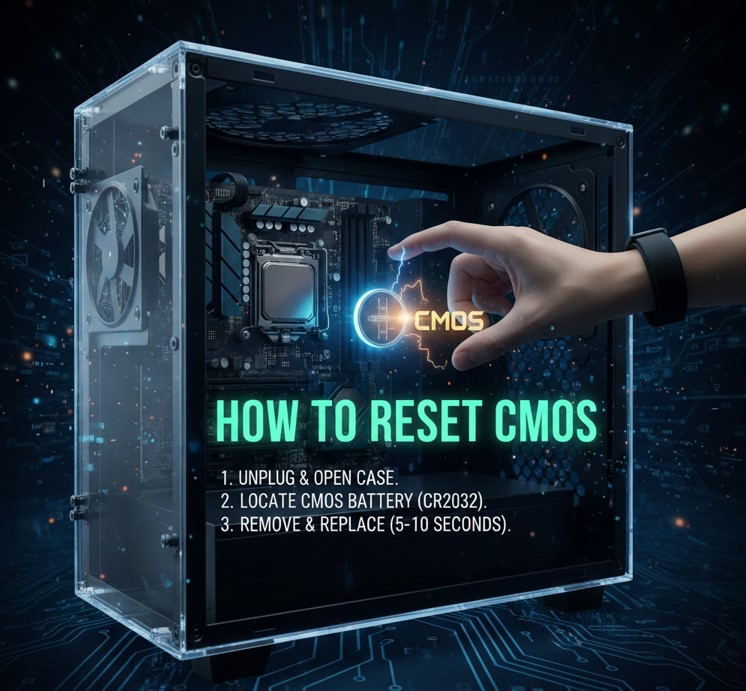
Resetting CMOS on a desktop PC is usually straightforward because motherboards are accessible and designed with reset options.
Desktop CMOS Reset Explained
. Power Down and Disconnect Electricity
Always shut down the PC and unplug the power cable to avoid electrical damage or short circuits.
. Discharge Residual Power
Press and hold the power button for 10–15 seconds to remove leftover charge from capacitors.
. Locate the CMOS Battery or Jumper
Most desktop motherboards have a visible CR2032 battery or a labeled “CLR_CMOS” jumper.
. Use Battery or Jumper Method
You can either remove the battery or short the jumper pins to reset CMOS memory.
. Wait for Memory to Clear
Leaving the battery out for 5–10 minutes ensures complete discharge of CMOS data.
. Reassemble and Boot System
Reconnect everything, boot the PC, and enter BIOS to reconfigure settings if needed.
Also Read:- How to Get Rid of Gnats: The Complete Expert Guide for Home, Plants, and Outdoors
How to Reset CMOS Battery (Universal Method)
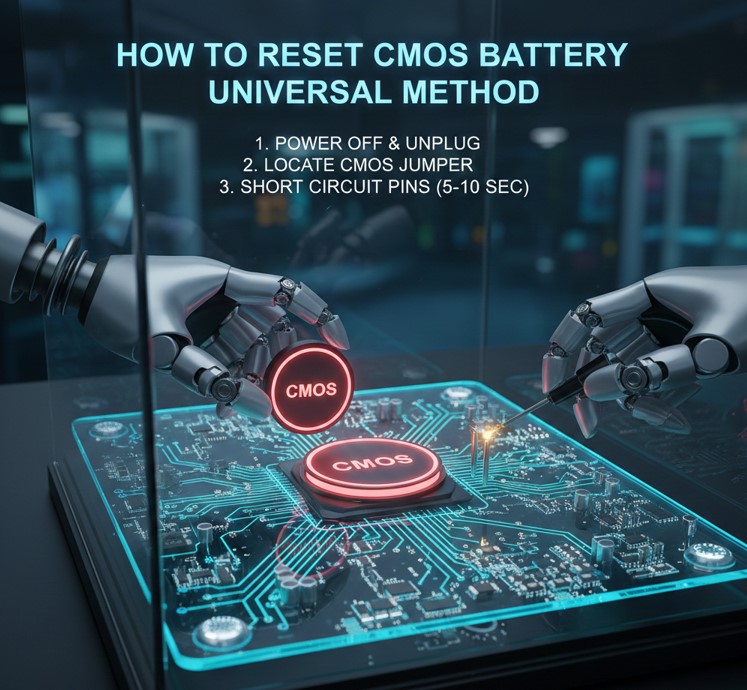
The CMOS battery method is one of the most reliable and universally supported ways to reset CMOS across desktops and some laptops.
CMOS Battery Reset Method
. Identify the CMOS Battery Type
Most systems use a CR2032 lithium coin-cell battery mounted on the motherboard.
. Remove Power Sources Completely
Unplug the PC or laptop and remove the main battery if applicable.
. Carefully Remove the CMOS Battery
Gently push the metal clip aside and lift the battery without bending connectors.
. Allow Time for Full Discharge
Wait at least 5–10 minutes to ensure stored CMOS data is fully cleared.
. Reinsert Battery Correctly
Ensure correct polarity when placing the battery back into its socket.
. Boot and Reset BIOS Settings
Start the system and load default BIOS settings when prompted.
Also Read:- How to Clear Cache on iPhone: A Complete, Expert-Backed Guide
How to Reset CMOS on Motherboard Using Jumper

Most modern motherboards include a CMOS reset jumper specifically designed for fast resets.
Jumper-Based CMOS Reset
. Locate the Clear CMOS Jumper
Check the motherboard manual for labels such as CLR_CMOS, JBAT1, or CLRTC.
. Understand Jumper Pin Configuration
Usually involves moving a jumper cap from pins 1–2 to pins 2–3 temporarily.
. Turn Off and Unplug System
Never manipulate jumpers while power is connected.
. Short the Jumper Pins
Place the jumper in reset position for 10–20 seconds.
. Return Jumper to Original Position
Failing to do this may prevent the system from booting.
. Power On and Verify Reset
Enter BIOS to confirm default settings have been restored.
Also Read:- How to Put on a Duvet Cover: A Complete Guide
How to Reset CMOS on ASUS Motherboards
ASUS motherboards offer multiple CMOS reset options, including jumpers, rear I/O buttons, and battery removal.
ASUS CMOS Reset Guide
. Use ASUS Clear CMOS Button
High-end ASUS boards include a dedicated button on the rear I/O panel.
. Locate CLRTC Jumper
Most ASUS boards label their CMOS jumper clearly near the battery.
. Disconnect Power Fully
ASUS recommends removing all power sources before resetting CMOS.
. Short Jumper Pins with Screwdriver
If no jumper cap is available, briefly short pins using a metal object.
. Wait for System Reset Confirmation
Some boards blink LEDs indicating CMOS reset success.
. Reconfigure BIOS Settings
Load optimized defaults and adjust boot or fan settings as needed.
Also Read:- How to Put on Cufflinks: A Step-by-Step Guide
How to Reset CMOS on MSI Motherboards
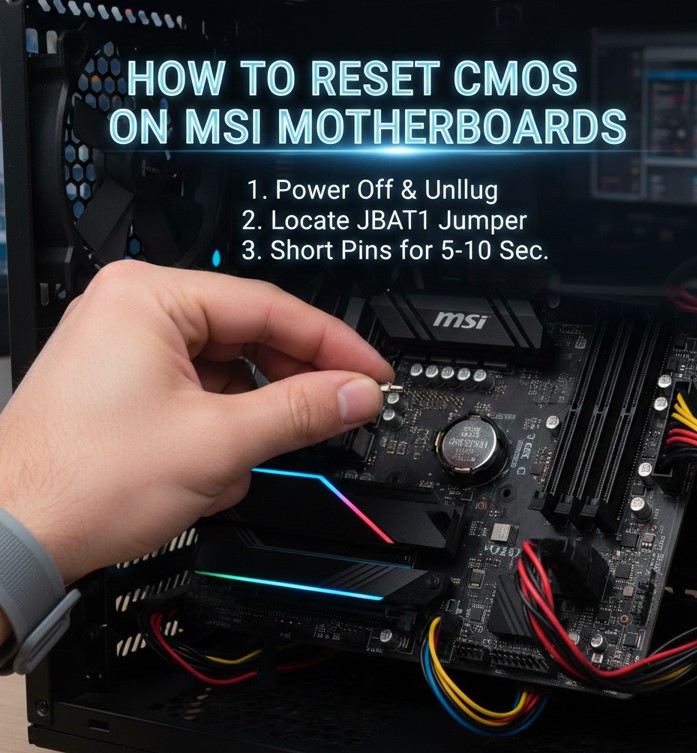
MSI boards are widely used in gaming and enthusiast builds, offering both jumper and button-based resets.
MSI CMOS Reset Instructions
. Identify JBAT1 Jumper
MSI typically labels the CMOS reset jumper as JBAT1.
. Power Down System Completely
Disconnect PSU and ensure no standby power remains.
. Short Jumper Pins Briefly
Use a screwdriver to connect pins for 5–10 seconds.
. Remove CMOS Battery if Needed
For stubborn issues, battery removal may be required.
. Restart and Enter BIOS
Press DEL key during boot to access BIOS.
. Load Default BIOS Profile
MSI BIOS provides an option to restore factory defaults easily.
Also Read:- How to Make Playdough: The Complete Safe & Creative Guide
How to Reset CMOS on Gigabyte Motherboards
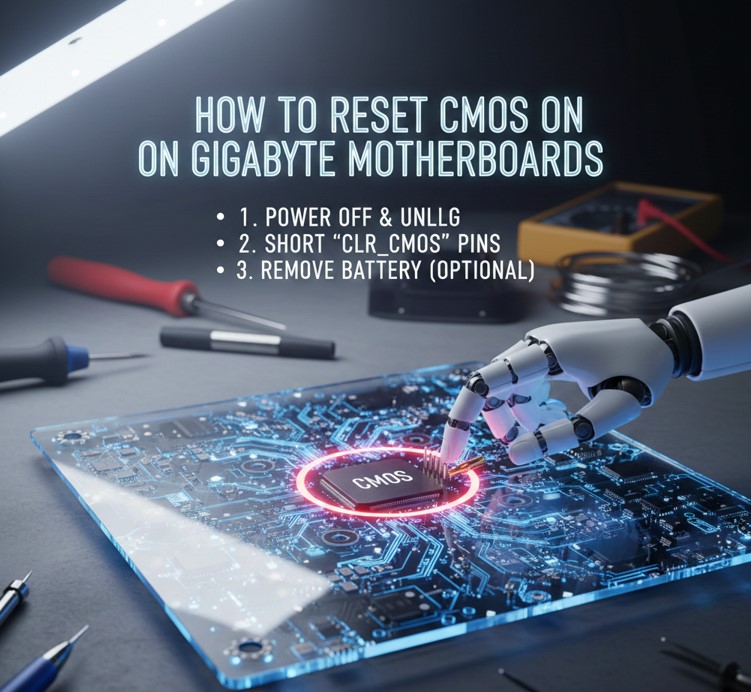
Gigabyte motherboards include dual BIOS protection but still rely on CMOS memory.
Gigabyte CMOS Reset Steps
. Locate CLR_CMOS Header
Gigabyte boards clearly label their CMOS reset header.
. Ensure System Is Fully Powered Off
Disconnect PSU and remove power cable.
. Short CMOS Pins Carefully
Use jumper or screwdriver for 10 seconds.
. Utilize Dual BIOS Recovery if Needed
Gigabyte boards can auto-recover BIOS settings.
. Remove Battery for Deep Reset
If jumper reset fails, remove the CMOS battery.
. Verify BIOS Defaults on Boot
Confirm that boot order and date/time are reset.
Also Read:- How to Minimize Pores: A Complete Dermatologist-Backed Guide
How to Reset CMOS on a Laptop
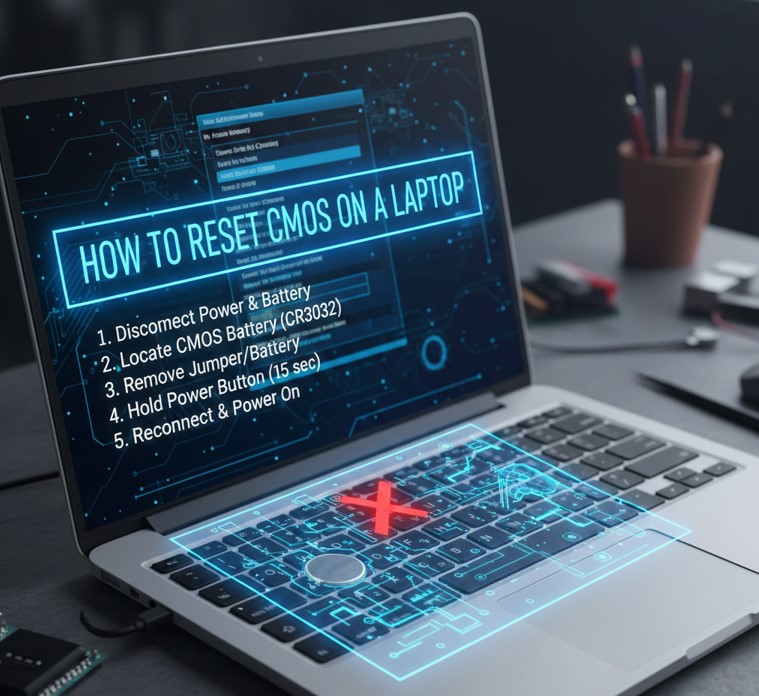
Resetting CMOS on laptops is more complex due to compact internal design.
Laptop CMOS Reset Explained
. Check Manufacturer Instructions First
Laptop CMOS reset methods vary significantly by brand and model.
. Remove Main Battery and Charger
Ensure the laptop is fully powered down.
. Access Internal CMOS Battery
Some laptops hide the CMOS battery under keyboard or motherboard shielding.
. Disconnect CMOS Battery Cable
Many laptops use wired CMOS batteries instead of coin cells.
. Wait for Memory Discharge
Leave battery disconnected for 10–15 minutes.
. Reassemble and Boot System
Enter BIOS to verify reset and reconfigure settings.
Also Read:- How to Jump Car: The Complete, Safe, Step-by-Step Guide
Conclusion
Understanding how to reset CMOS is an essential troubleshooting skill for anyone working with computers. Whether you’re fixing boot failures, resolving BIOS errors, or recovering from unstable overclocking, a CMOS reset provides a safe and effective solution.
FAQs
Does resetting CMOS delete data?
No, resetting CMOS only clears BIOS settings, not files on your hard drive.
How often should CMOS be reset?
Only when troubleshooting BIOS-related issues or hardware changes.
Can resetting CMOS damage my PC?
When done correctly, it is completely safe.
Why won’t my PC boot after CMOS reset?
Boot order or storage mode may need reconfiguration in BIOS.
For More Updates Visit: Biomagazine
