

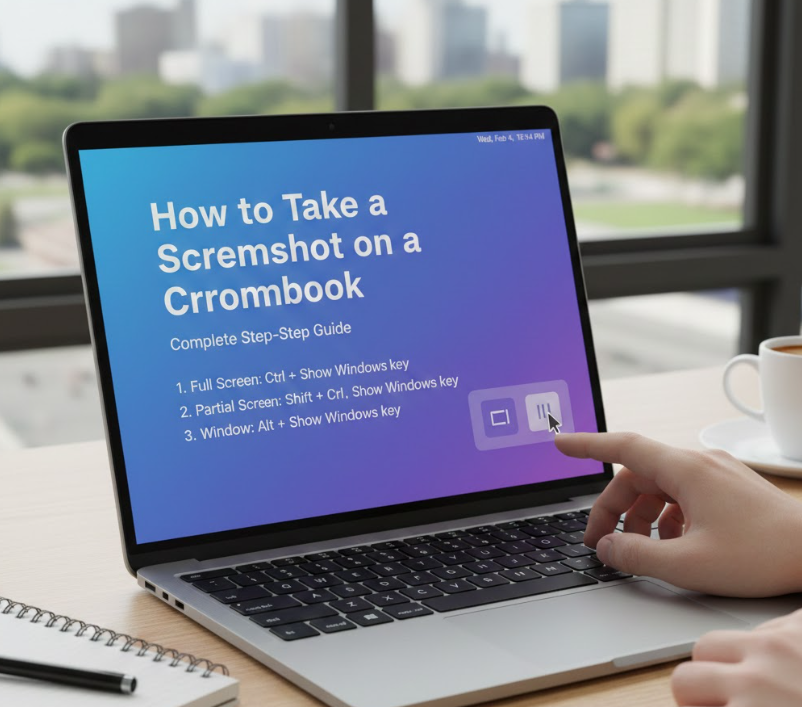
Taking screenshots has become an essential everyday skill, whether you are a student saving study notes, a professional capturing work instructions, or a casual user sharing something interesting on screen. If you are new to Chrome OS or switching from Windows or macOS, you might wonder how to take a screenshot on a Chromebook efficiently without installing extra software.
Chromebooks use a slightly different keyboard layout, which can feel confusing at first. However, once you understand the built-in screenshot shortcuts and tools, capturing your screen becomes fast, flexible, and surprisingly powerful. This guide explains everything in detail, covering Chromebook laptops in general, and then specifically HP, Dell, and Lenovo Chromebooks, so you never feel stuck regardless of the device you use.
Understanding Screenshot Functionality on Chrome OS
Chrome OS includes a native screenshot system designed for speed, simplicity, and cloud-friendly workflows. Unlike traditional laptops, Chromebooks do not rely on third-party apps for basic screen capture. Instead, Google has integrated screenshot tools directly into the operating system.
Screenshots on Chromebooks are automatically saved, easy to find, and can be edited instantly. You can capture the entire screen, a selected portion, or a specific window. Newer Chrome OS versions also include a Screen Capture Tool, which allows both screenshots and screen recordings from one unified interface.
This system is optimized for education, remote work, and cloud collaboration, making Chromebooks especially popular in schools and offices worldwide.
Also Read:- How to Stop Hiccups: Complete Guide to Fast, Safe, and Proven Relief
How to Take a Screenshot on a Chromebook Laptop
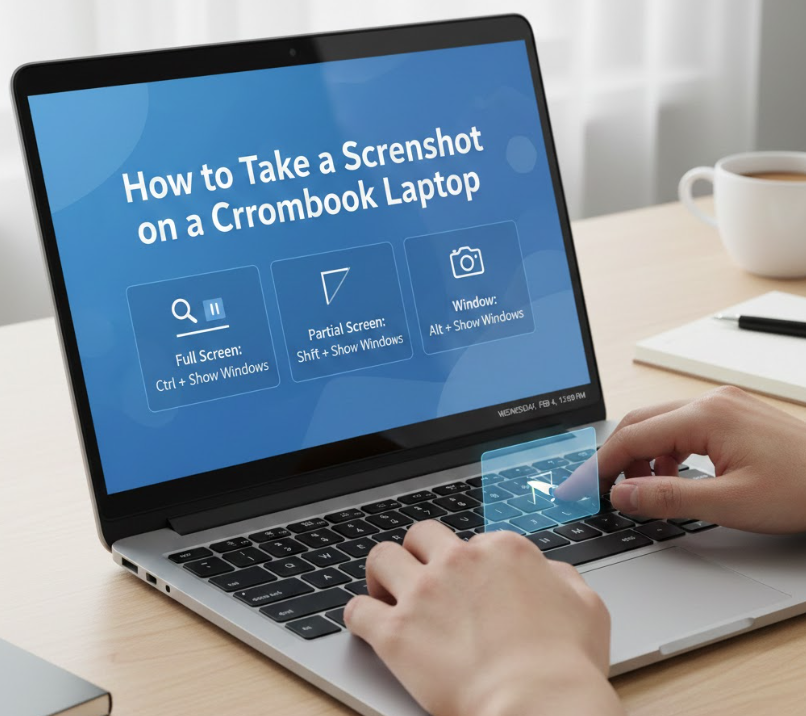
This section explains the universal methods that work on all Chromebook laptops, regardless of brand. These shortcuts rely on Chrome OS keyboard keys rather than manufacturer-specific buttons.
• Using the Full Screen Screenshot Shortcut
Pressing the Ctrl + Show Windows keys together captures the entire screen instantly. The Show Windows key looks like a rectangle with two vertical lines and replaces the traditional “Print Screen” key. This method is ideal for saving full webpages, presentations, or desktop layouts without missing any visible content.
• Capturing a Partial Screenshot
When you need only a specific section of the screen, press Ctrl + Shift + Show Windows. Your cursor turns into a crosshair, allowing you to click and drag to select the exact area. This method reduces clutter and keeps screenshots focused and professional.
• Screenshotting a Specific Window
Using the Chrome OS Screen Capture Tool, you can choose to capture a single app window. This is especially useful for multitasking environments where multiple apps are open but only one is relevant.
• Using the Quick Settings Screenshot Tool
Click the system clock in the bottom-right corner, then select “Screen Capture.” This opens a toolbar that offers visual options for full, partial, or window screenshots, ideal for beginners who prefer clicking over keyboard shortcuts.
• Touchscreen Screenshot Method
On touchscreen Chromebooks, pressing the Power button + Volume Down simultaneously takes a screenshot. This method feels familiar to users coming from smartphones or tablets.
• Where Screenshots Are Saved
All screenshots are automatically saved in the “Downloads” folder. From there, you can rename, edit, upload to Google Drive, or share them instantly.
Also Read:- How to Program a Garage Door Opener: Step-by-Step Guide for Remotes, LiftMaster, Cars, and Keypads
How to Take a Screenshot on a Chromebook HP
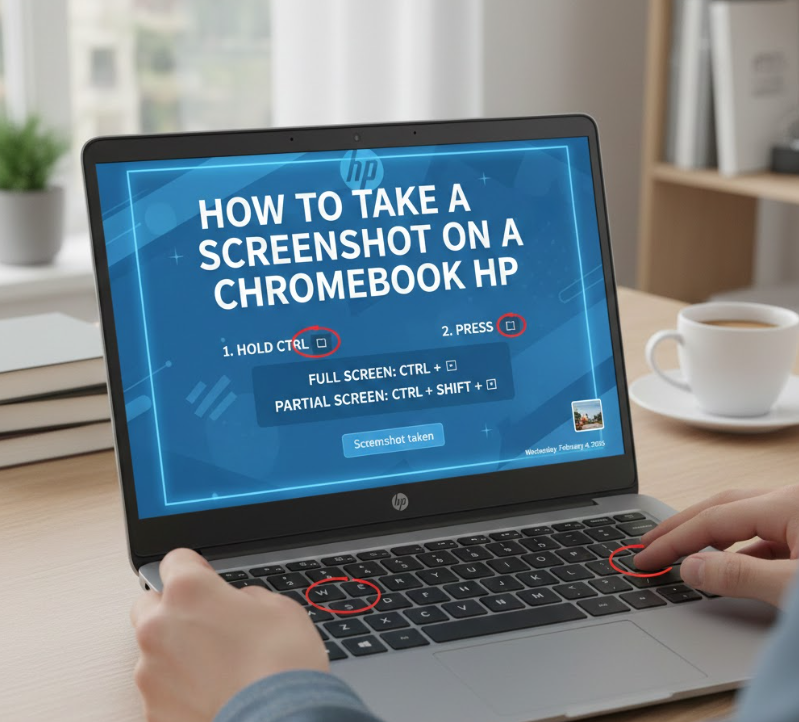
HP Chromebooks follow standard Chrome OS functionality but are often used in educational and enterprise environments, making screenshot accuracy especially important.
• Standard Keyboard Shortcut on HP Chromebook
HP Chromebooks use the same Ctrl + Show Windows shortcut for full screenshots. The keyboard layout may look different, but the Show Windows key remains consistent across HP models.
• Partial Screenshot for Study and Work Use
HP Chromebooks are widely used by students. The partial screenshot shortcut allows users to capture diagrams, formulas, or small text areas without unnecessary background distractions.
• HP Touchscreen Compatibility
Many HP Chromebooks include touchscreen displays. Using Power + Volume Down is particularly useful when the keyboard is folded back or detached.
• Using the Screen Capture Tool for Precision
HP Chromebook users benefit from Chrome OS updates that include annotation and cropping features directly after taking screenshots, improving workflow efficiency.
• Saving and Syncing Screenshots to Google Drive
HP Chromebooks integrate seamlessly with Google Drive. Screenshots can be backed up automatically, reducing the risk of losing important information.
• Common HP Chromebook Screenshot Issues
Occasionally, users experience missed key presses or delayed captures. Ensuring Chrome OS is updated usually resolves these issues quickly.
Also Read:- How to Do a Pullup: The Complete, Science-Backed Guide for Beginners and Beyond
How to Take a Screenshot on a Chromebook Dell
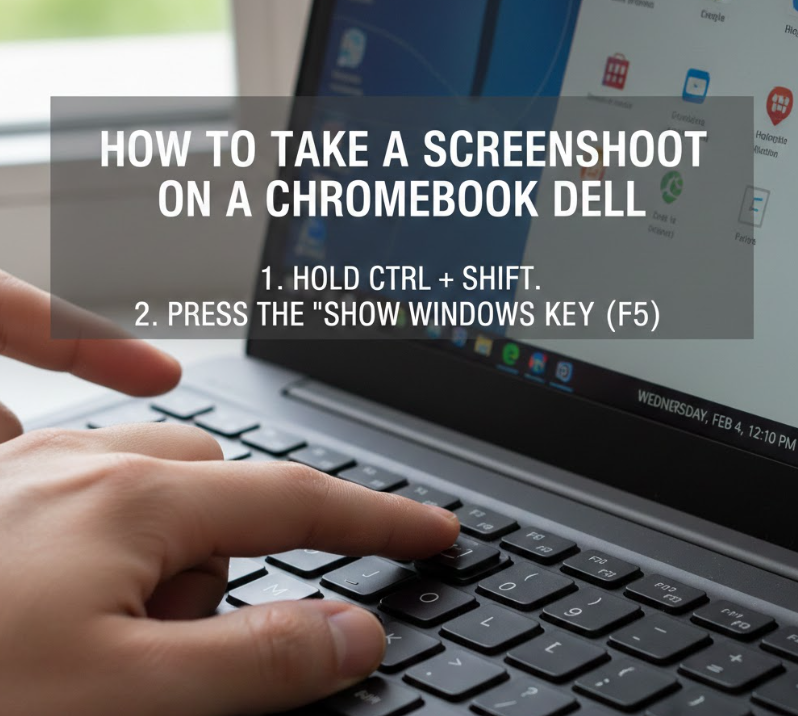
Dell Chromebooks are known for durability and performance, particularly in professional and classroom environments. Screenshot tools on Dell devices are identical to Chrome OS standards but optimized for productivity.
• Dell Chromebook Keyboard Method
The Ctrl + Show Windows shortcut works flawlessly on Dell Chromebooks, capturing crisp and clear full-screen images.
• Partial Screenshot for Business Tasks
Dell Chromebook users often work with spreadsheets, dashboards, or reports. Partial screenshots help capture only relevant data sections, improving communication clarity.
• External Keyboard Screenshot Options
When using an external keyboard with a Dell Chromebook, Ctrl + F5 often functions as a screenshot shortcut, depending on keyboard layout.
• Using Screen Capture for Presentations
Dell Chromebooks are frequently connected to external monitors. The Screen Capture Tool allows users to choose which screen to capture, avoiding confusion.
• Image Editing After Capture
Dell Chromebook screenshots can be edited using built-in tools or Google Photos, allowing quick annotations before sharing.
• Performance Reliability
Dell Chromebooks handle screenshots efficiently even during multitasking, making them reliable for long work sessions.
Also Read:- How to Cook Rice: The Complete Expert Guide for Perfect Results Every Time
How to Take a Screenshot on a Chromebook Lenovo
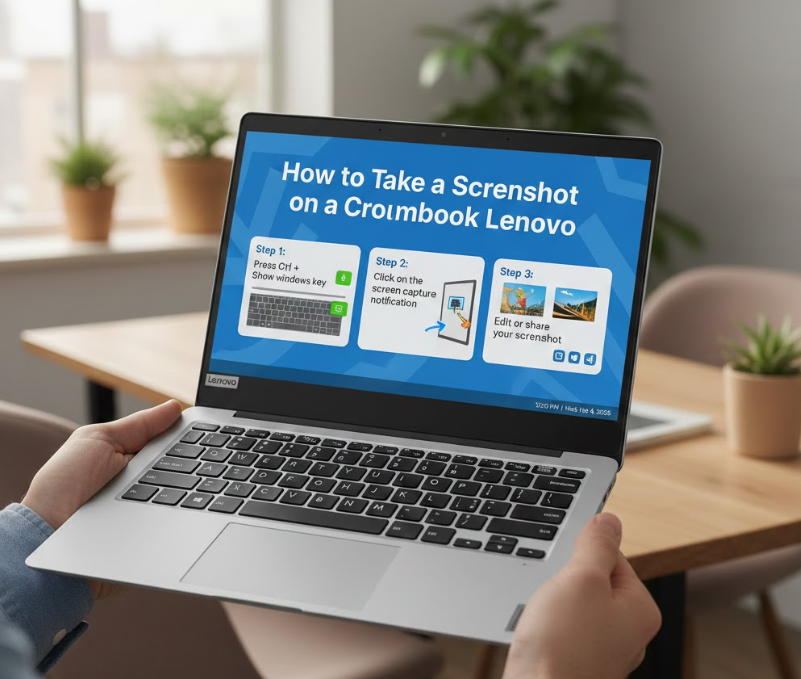
Lenovo Chromebooks are popular for their balance of performance and affordability. Screenshot functionality remains simple but powerful.
• Lenovo Chromebook Shortcut Keys
The universal Ctrl + Show Windows shortcut works consistently across Lenovo Chromebook models, including convertibles.
• Partial Screenshot for Online Learning
Lenovo Chromebooks are widely used in online classrooms. Partial screenshots help students capture lesson highlights without distractions.
Also Read:- How to Bake a Cake: A Complete Expert Guide for Beginners and Home Bakers
Best Practices for Screenshot Management on Chromebooks
Taking screenshots is only half the process. Organizing, naming, and storing them properly improves productivity and accessibility.
• Rename screenshots immediately for clarity
• Use Google Drive folders for backup
• Crop unnecessary areas to reduce file size
• Use annotations to explain visual content
• Delete outdated screenshots regularly
• Share via Google Docs or Gmail for seamless collaboration
Conclusion
Learning how to take a screenshot on a Chromebook is a simple but powerful skill that improves productivity, communication, and digital organization. Whether you use an HP, Dell, Lenovo, or any other Chromebook laptop, Chrome OS provides consistent, reliable tools that work instantly without extra software.
By mastering keyboard shortcuts, touchscreen methods, and the Screen Capture Tool, you can capture exactly what you need, when you need it. With proper organization and cloud integration, screenshots become more than images — they become efficient tools for learning, work, and collaboration.
FAQs
Where do Chromebook screenshots go?
They are saved in the Downloads folder by default.
Can I change the screenshot location?
Yes, you can move files to Google Drive or other folders manually.
Do all Chromebooks use the same shortcuts?
Yes, Chrome OS shortcuts are universal across brands.
Can I edit screenshots on a Chromebook?
Yes, built-in editing tools allow cropping, annotation, and sharing.
For More Updates Visit: Biomagazine
