

If you are searching for how to factory reset iPhone, you are likely dealing with a serious issue such as a forgotten passcode, performance problems, resale preparation, or software glitches. A factory reset erases all personal data and restores the device to its original settings, making it a powerful but necessary solution when other fixes fail.
Understanding how to factory reset iPhone correctly is critical. An improper reset can lead to data loss, iCloud lock issues, or permanent access problems. This guide is designed with real user experience, technical accuracy, and safety in mind, ensuring you choose the correct method for your situation.
In this comprehensive article, you will learn multiple ways to reset an iPhone—including methods without a password, without Apple ID, using hardware buttons, and without a computer. Each section explains not just how to reset, but why each method works, when to use it, and what risks to avoid.
How to Factory Reset iPhone Without Password
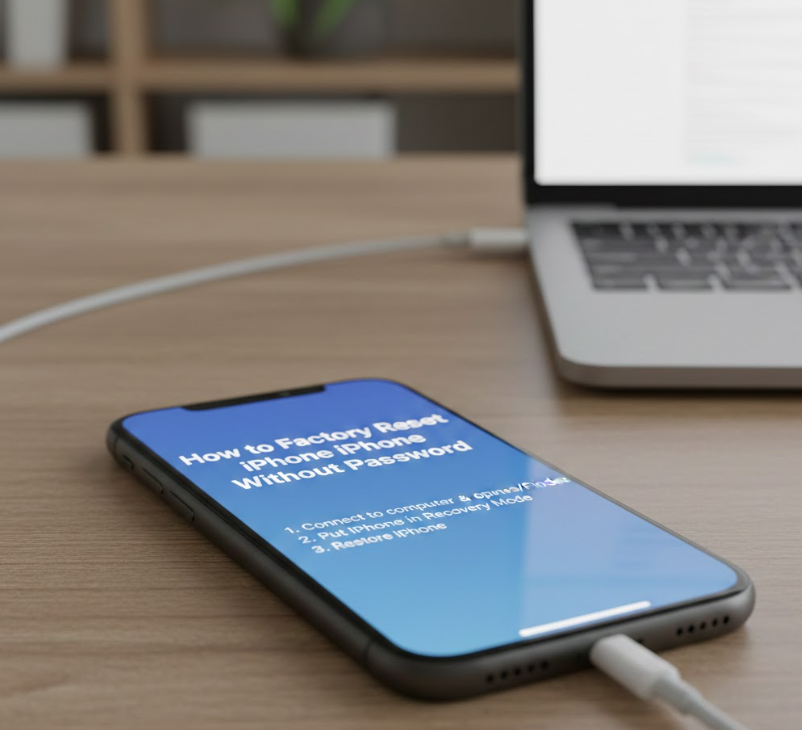
Resetting an iPhone without a password is one of the most commonly searched scenarios. This situation usually happens when a device is locked after too many incorrect attempts or when the original passcode is forgotten.
A factory reset without a password requires bypassing the lock screen through recovery-based solutions or system-level access, ensuring the device can be erased completely.
Understanding Factory Reset Without Passcode
• Why passcode protection blocks normal reset methods
Apple’s security system is designed to protect user data at all costs. Without the correct passcode, the device prevents access to settings, backups, and erase options. This makes unauthorized resets nearly impossible through standard menus, forcing users to rely on recovery processes.
• Using recovery mode to override lock restrictions
Recovery mode allows the iPhone to communicate with trusted system software that can reinstall iOS. When activated properly, it ignores the locked screen and provides the option to erase and restore the device entirely, removing the forgotten passcode.
• Data loss is unavoidable in this process
When resetting an iPhone without a password, all data stored locally is permanently erased. This includes photos, messages, apps, and settings. Only users with prior iCloud or iTunes backups can restore data afterward.
• Why this method is Apple-approved
Apple officially supports password-less resets through recovery mode as a legitimate solution for locked devices. This ensures security while still offering a path forward for rightful owners.
• iCloud activation lock may still apply
Even after a successful reset, the device may request the original Apple ID credentials. This is a separate protection layer designed to prevent theft, not passcode misuse.
• Best use cases for this method
This approach is ideal for users who forgot their passcode, bought a second-hand iPhone, or are dealing with a disabled device due to too many incorrect attempts.
Also Read:- How to Make Slime: Complete Step-by-Step Guide for Beginners
How to Factory Reset iPhone With Buttons
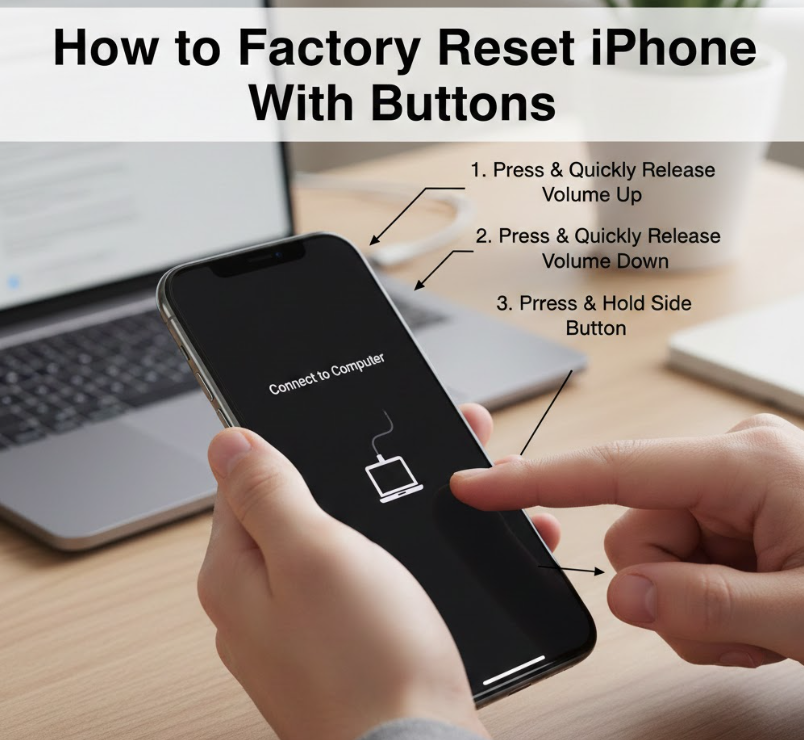
Many users want to know how to factory reset iPhone with buttons, especially when the screen is frozen or unresponsive. Hardware buttons offer a direct way to access recovery mode when touch input is unavailable.
This method relies on precise button combinations that vary depending on the iPhone model.
Why Button-Based Reset Is Effective
• Buttons bypass touchscreen dependency
When an iPhone freezes or the screen stops responding, software-based resets become impossible. Hardware buttons operate independently from iOS, allowing access to recovery mode even during system failure.
• Different models require different button sequences
Newer iPhones use a volume-based combination, while older models rely on the Home button. Understanding your exact model ensures correct timing and avoids accidental restarts instead of recovery mode.
• Recovery mode forces iOS reinstallation
Once activated, recovery mode allows iTunes or Finder to reinstall the operating system. This process erases corrupted system files and resets the device to factory settings.
• Prevents boot loops and system crashes
Button-based resets are particularly effective for iPhones stuck in boot loops, Apple logo screens, or failed update cycles. Reinstalling iOS often resolves these issues completely.
• Still requires external device interaction
Although buttons trigger recovery mode, a Mac or PC is required to complete the reset. This ensures authentication and controlled system restoration.
• Common mistakes users make
Pressing buttons too slowly or in the wrong order can restart the device instead of entering recovery mode. Timing and sequence accuracy are essential for success.
Also Read:- How to Take a Screenshot on a Chromebook: Complete Step-by-Step Guide
How to Factory Reset iPhone Without Apple ID Password
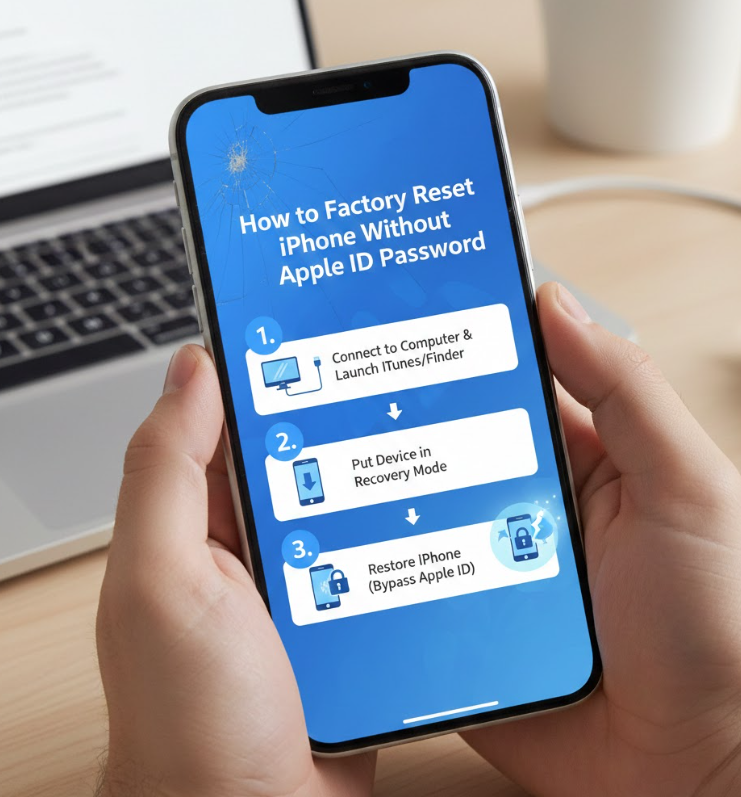
Resetting an iPhone without the Apple ID password is more complex due to Apple’s Activation Lock, a core security feature designed to prevent device theft.
This method is usually required when users forget their Apple ID credentials or purchase a device still linked to the previous owner’s account.
Why Apple ID Lock Exists
• Activation Lock protects ownership rights
Apple ID credentials are tied directly to device ownership. Even after a factory reset, the system requires the original Apple ID to confirm legitimacy, preventing stolen devices from being reused.
• Official Apple account recovery is safest
Apple provides account recovery tools that verify identity using email, phone number, or security questions. This is the most secure and recommended path to removing the Apple ID lock.
• Proof of purchase can unlock devices
Users who have a valid purchase receipt can contact Apple Support to request Activation Lock removal. This method confirms legal ownership and bypasses Apple ID requirements.
• Third-party tools carry significant risks
While some software claims to bypass Apple ID, many violate Apple’s terms, risk malware infection, or permanently damage the device. Caution is strongly advised.
• Data is unrecoverable after bypass attempts
Any method that removes Apple ID access results in complete data loss. iCloud backups tied to that Apple ID will also become inaccessible.
• Best situations for this approach
This method is most relevant for inherited devices, second-hand purchases, or users locked out of long-unused Apple ID accounts.
Also Read:- How to Stop Hiccups: Complete Guide to Fast, Safe, and Proven Relief
How to Factory Reset iPhone Without Password or Computer
Many users ask whether it’s possible to reset an iPhone without a password or computer. While options are limited, certain conditions allow this process using iOS’s built-in features.
This method depends heavily on system version and prior configuration.
When Computer-Free Reset Is Possible
• Erase iPhone option on lock screen
Newer iOS versions include an “Erase iPhone” option after multiple failed passcode attempts. This allows a factory reset directly from the lock screen without needing a computer.
• Requires Apple ID authentication
Although no computer is needed, the Apple ID password is still required to disable Activation Lock. This ensures security remains intact.
• Internet connection is mandatory
The device must be connected to Wi-Fi or mobile data to verify Apple ID credentials and complete the erase process successfully.
• Best for personal devices only
This method works best when the user still remembers Apple ID details but has forgotten the screen passcode.
• Not available on older iOS versions
Older devices without updated iOS software may not support this feature, making computer-based recovery the only option.
• Limited recovery options afterward
Without a computer backup, restoring data depends entirely on iCloud availability and prior synchronization.
Also Read:- How to Program a Garage Door Opener: Step-by-Step Guide for Remotes, LiftMaster, Cars, and Keypads
Conclusion
Knowing how to factory reset iPhone is an essential skill for every iPhone user. Whether you’re locked out, preparing to sell your device, or fixing serious software issues, choosing the correct reset method protects your data and saves time.
This guide covered every major scenario—from resetting without a password to handling Apple ID locks and button-based recovery methods. By following these expert-backed steps carefully, you can reset your iPhone safely, legally, and effectively.
FAQs
Q: Does factory reset remove everything from iPhone?
Yes, it permanently erases all data, settings, and installed apps.
Q: Can I reset iPhone without losing data?
No, a factory reset always removes local data. Backups are essential.
Q: Will factory reset remove iCloud lock?
No, Activation Lock remains unless the Apple ID is removed.
For More Updates Visit: Biomagazine
