

Knowing how to hide apps on iPhone has become essential as smartphones now store private conversations, financial tools, work apps, and personal data. Many iPhone users want to hide apps not because they’re doing something wrong, but to protect privacy, reduce distractions, or keep their home screen clean and organized.
Apple does not provide a single “hide app” button, but iOS offers multiple powerful built-in methods that allow users to hide apps discreetly without deleting data. From Screen Time controls to App Library management, Apple gives you full control—if you know where to look.
This guide explains how to hide apps on iPhone without deleting them, covering Settings-based methods, iOS 16 features, and model-specific tips for iPhone 13 and iPhone 14. Every method is official, safe, reversible, and privacy-focused.
Understanding How App Hiding Works on iPhone
Before learning specific methods, it’s important to understand that hiding apps on iPhone means:
• Removing them from the Home Screen
• Restricting search visibility
• Limiting access through Screen Time
• Keeping data intact
Hidden apps remain installed and functional unless you choose to delete them.
How to Hide Apps on iPhone Without Deleting It
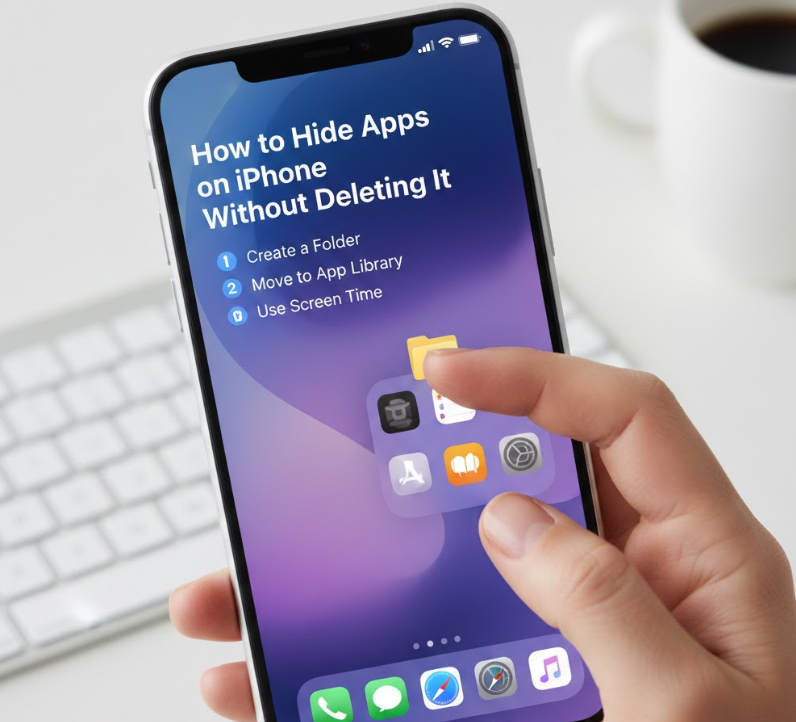
Understanding how to hide apps on iPhone without deleting it means using Apple’s built-in tools to remove visual access while keeping the app installed. This is ideal for banking apps, dating apps, work tools, or apps you rarely use but still need.
Apple prioritizes data security, so hidden apps remain encrypted, updated, and recoverable at any time. This approach balances privacy with usability.
Key Build Points
• Use App Library instead of deletion
You can remove apps from the Home Screen while keeping them accessible in the App Library. This keeps the app installed but out of sight.
• Long-press and remove from Home Screen
Tap and hold the app, select “Remove App,” then choose “Remove from Home Screen.” The app stays hidden but installed.
• Disable app visibility in search
Settings allow you to prevent apps from appearing in Spotlight Search or Siri suggestions.
• Group apps into folders discreetly
Folders can hide apps in secondary pages, reducing accidental exposure.
• Restrict app access using Screen Time
Apps can be hidden behind passcodes, ensuring only authorized users can open them.
• Restore instantly when needed
Hidden apps can be restored without reinstalling or losing data.
Also Read:- How to Find Horizontal Asymptotes (Complete Step-by-Step Guide)
How to Hide Apps on iPhone in Settings
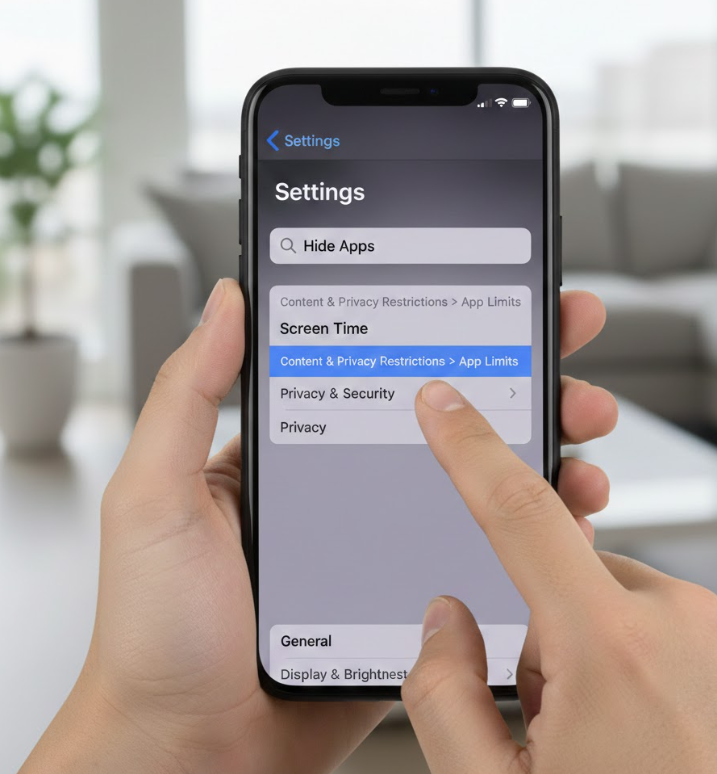
Learning how to hide apps on iPhone in Settings unlocks deeper control over visibility and access. Apple’s Settings app offers advanced tools—especially through Screen Time—that let you restrict, hide, or limit apps without uninstalling them.
This method is especially useful for parents, professionals, or anyone sharing their device.
Key Build Points
• Enable Screen Time for app control
Screen Time allows app hiding, restrictions, and access limits based on usage or category.
• Use Content & Privacy Restrictions
You can hide entire categories of apps such as social media or entertainment.
• Disable app from Spotlight Search
Apps can be hidden from search results and Siri suggestions.
• Restrict app installation visibility
Apps can be hidden from Home Screen without affecting system updates.
• Apply passcode protection
Hidden apps can only be accessed with Screen Time passcodes.
• Fully reversible through Settings
All changes can be undone without reinstalling apps.
Also Read:- How to Delete Telegram Account (Step-by-Step Complete Guide)
How to Hide Apps on iPhone 14
Knowing how to hide apps on iPhone 14 is especially useful because this model includes advanced iOS features, App Library improvements, and stronger privacy controls. Apple designed iPhone 14 to enhance digital security and personal control.
The methods used here are optimized for newer hardware and software performance.
Key Build Points
• Use App Library for automatic categorization
Apps removed from the Home Screen appear only in the App Library.
• Hide apps from Home Screen pages
Entire pages can be hidden, concealing multiple apps at once.
• Leverage Focus Mode app filters
Focus modes can hide apps during specific times or activities.
• Use Screen Time restrictions
Apps can be hidden behind passcodes on iPhone 14.
• Disable app notifications for discretion
Hidden apps won’t show alerts on lock screen or banners.
• Restore visibility instantly
Apps can be restored without reinstallation or data loss.
Also Read:- How to Learn to Code: A Complete Beginner-to-Advanced Roadmap
How to Hide Apps on iPhone 13
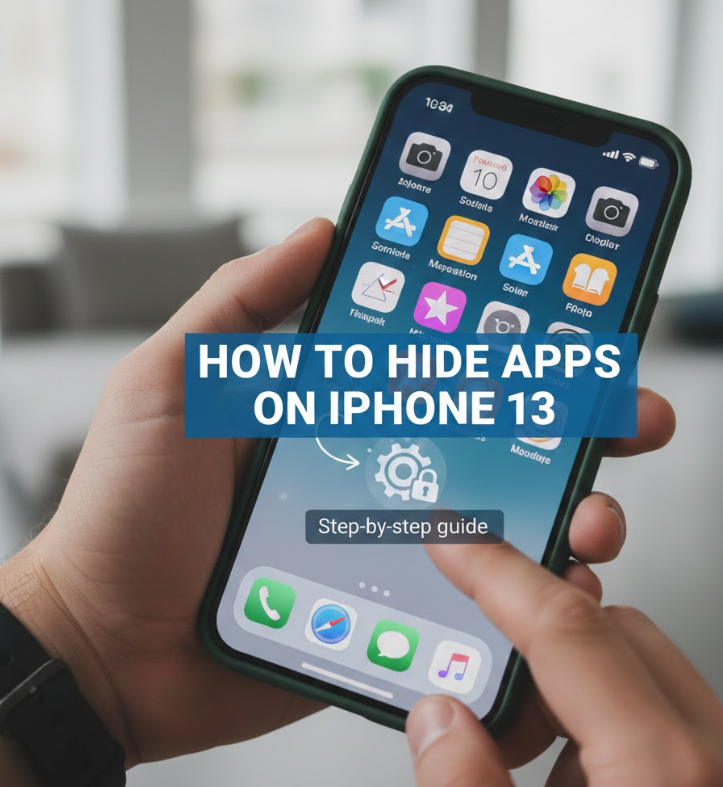
Learning how to hide apps on iPhone 13 involves the same iOS ecosystem but optimized for slightly earlier hardware. Apple ensured iPhone 13 fully supports App Library, Screen Time, and Focus Mode features.
These tools help users maintain privacy while keeping performance smooth.
Key Build Points
• Remove apps from Home Screen only
Apps remain accessible in App Library.
• Hide entire Home Screen pages
Multiple apps can disappear with a single action.
• Use Focus Mode for app filtering
Apps can be hidden during work or personal time.
• Control app visibility via Screen Time
Access restrictions protect sensitive apps.
• Disable search indexing for specific apps
Apps won’t appear in search or suggestions.
• Maintain full data integrity
Hidden apps keep all saved data and settings.
Also Read:-How to Factory Reset iPhone: Complete Step-by-Step Expert Guide
How to Hide Apps on iPhone iOS 16
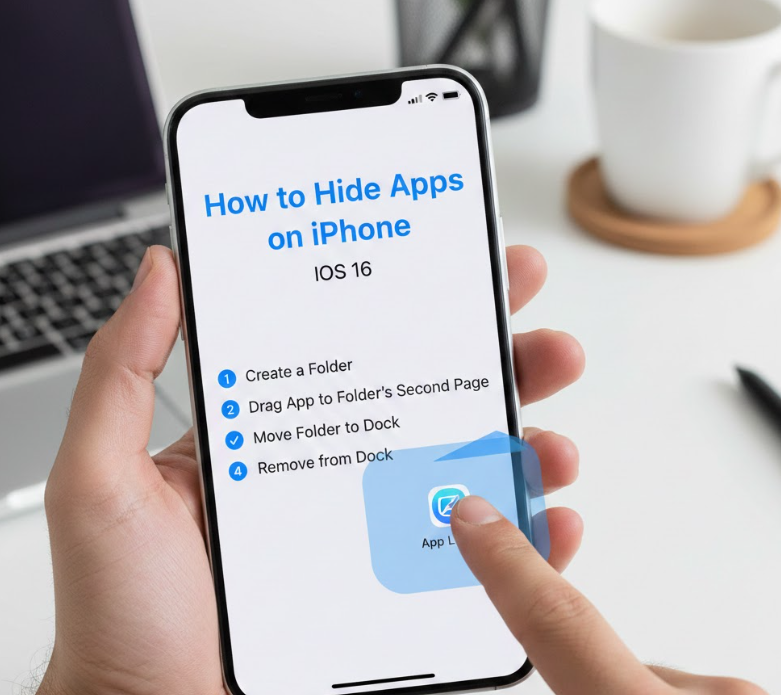
Understanding how to hide apps on iPhone iOS 16 is critical because iOS 16 introduced improved Focus Filters, smarter App Library grouping, and stronger privacy controls. These enhancements allow for more refined app hiding than ever before.
This method works across compatible iPhone models.
Key Build Points
• Use Focus Filters for app access control
Apps can be hidden based on location, time, or activity.
• Customize Home Screen visibility
Only selected apps appear during specific Focus modes.
• Hide apps from Siri and Search
iOS 16 gives granular control over search results.
• Restrict app categories via Screen Time
Entire app categories can be hidden instantly.
• Control app notifications discreetly
Hidden apps stay silent and invisible.
• Restore apps instantly when needed
All changes are reversible without reinstalling apps.
Also Read:- How to Make Slime: Complete Step-by-Step Guide for Beginners
Common Mistakes to Avoid
• Assuming deleting apps is the only way
• Using third-party hiding apps
• Forgetting Screen Time passcodes
• Ignoring App Library features
• Overcomplicating simple hiding methods
Conclusion: Mastering How to Hide Apps on iPhone
Learning how to hide apps on iPhone empowers you to control privacy, reduce clutter, and customize your digital space. Whether you’re using iPhone 13, iPhone 14, or iOS 16, Apple provides safe, built-in tools that work without deleting apps or risking data loss.
By using App Library, Settings, Screen Time, and Focus Modes, you can hide apps intelligently and restore them anytime. This balance of privacy and usability is what makes iPhone one of the most secure smartphones available today.
FAQs:
Q1: Can I completely hide apps on iPhone?
You can hide apps from Home Screen and search, but they remain in App Library.
Q2: Will hidden apps still update?
Yes. Hidden apps receive updates automatically.
Q3: Can someone find hidden apps?
Only through App Library or Settings, unless restricted by Screen Time.
Q4: Does hiding apps delete data?
No. All data remains intact.
For More Updates Visit: Biomagazine
