

Clearing cache on an iPhone is one of the most effective yet overlooked ways to improve device performance, free up storage space, and fix common app or browser issues. If you’ve ever noticed your iPhone slowing down, apps crashing unexpectedly, or websites loading incorrectly, learning how to clear cache on iPhone can make a noticeable difference almost instantly.
Cache files are temporary data stored by apps and browsers to help content load faster. While useful, these files can accumulate over time and cause performance issues if not managed properly. Apple’s iOS handles cache differently than Android, which often leaves users confused about where cache data lives and how to remove it safely.
This comprehensive guide explains how to clear cache on iPhone apps, Safari, Chrome, and Instagram, using clear instructions based on real-world iOS experience. You’ll also learn when clearing cache is beneficial, when it isn’t necessary, and how to avoid deleting important data by mistake. Whether you’re troubleshooting problems or simply maintaining your device, this guide provides everything you need in one place.
Understanding Cache on iPhone (What It Is and Why It Matters)
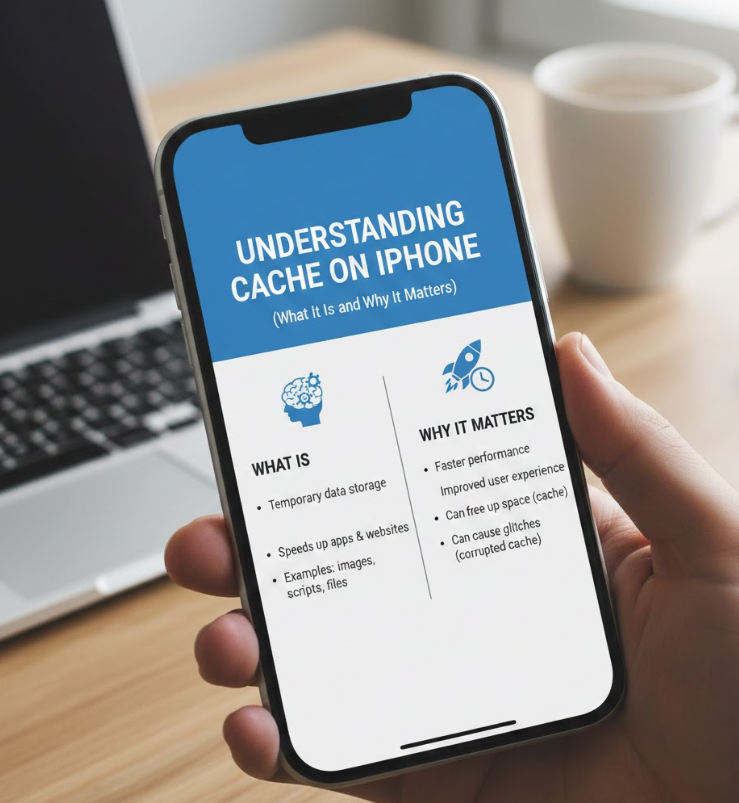
Cache on an iPhone refers to temporary files stored by apps and web browsers to speed up loading times and improve usability. These files can include images, scripts, login data, preferences, and session history that help apps and websites remember your activity.
Although cache improves performance in the short term, excessive cached data can slow down your device, consume storage, and even cause apps to malfunction.
Unlike Android, iOS does not provide a universal “clear cache” button, which means users must manage cache differently depending on the app or service involved.
Clearing cache does not delete personal data like photos, messages, or contacts when done correctly. Instead, it removes temporary files that can be safely rebuilt when the app or browser is reopened.
Knowing when and how to clear cache on iPhone helps you maintain a smooth, secure, and responsive device.
Also Read:- How to Put on a Duvet Cover: A Complete Guide
How to Clear Cache on iPhone Apps
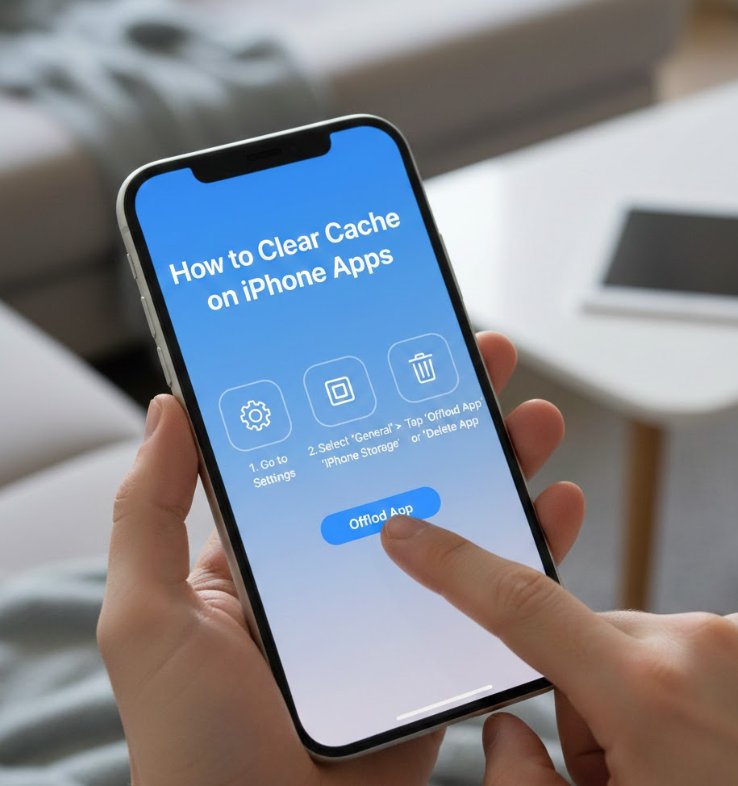
Clearing cache for apps on an iPhone requires a different approach than on other platforms. Apple prioritizes user privacy and system stability, so cache management is handled app-by-app rather than through a single system-wide control.
What Clearing App Cache on iPhone Means
Clearing cache on iPhone apps removes stored temporary data such as images, saved interface elements, and background files that help apps load faster. Over time, this data can become outdated or corrupted, leading to bugs, freezing, or slow performance.
When You Should Clear App Cache
• Apps frequently crashing or freezing indicate corrupted cache files that need refreshing
• Storage warnings often appear when cached data accumulates unnoticed
• Apps loading outdated content despite having an internet connection
• Battery drain caused by apps repeatedly reloading cached processes
• App updates failing due to old cached configuration files
• Performance drops on older iPhones with limited storage capacity
Also Read:- How to Put on Cufflinks: A Step-by-Step Guide
How to Clear Cache on iPhone Apps (Step-by-Step Explanation)
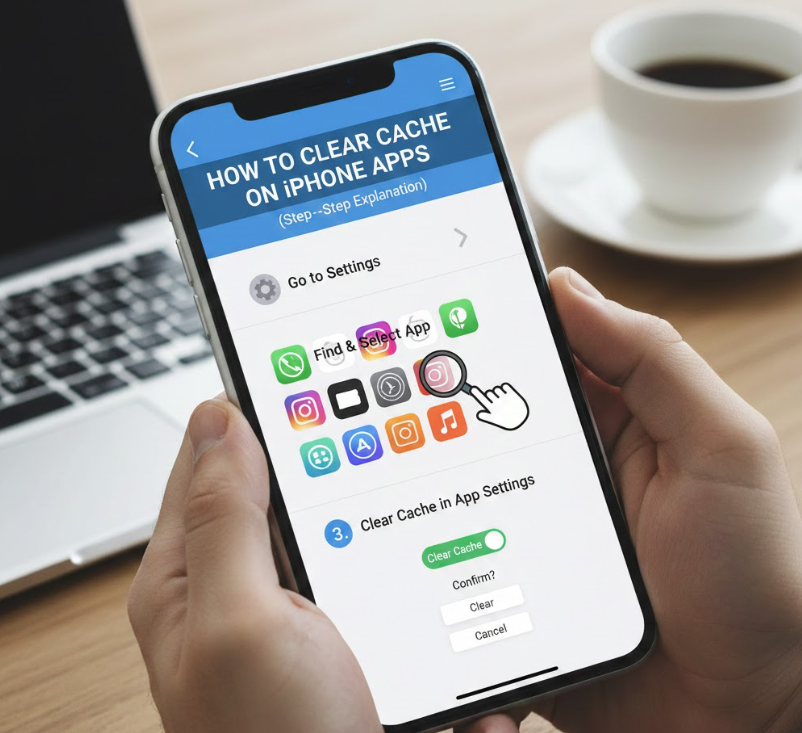
• Open Settings and navigate to General
Then tap iPhone Storage to view app usage and cached data size
• Select the app consuming excessive storage to understand how much space documents and cache files occupy
• Choose Offload App to remove the app while keeping its data, which clears most cached files safely
• Alternatively, tap Delete App, then reinstall it from the App Store to completely remove cache and rebuild clean data
• Restart your iPhone after reinstalling to ensure system memory is refreshed properly
• Monitor app performance after reinstalling to confirm cache-related issues are resolved
Clearing cache through app removal is the most reliable method on iOS.
Apple automatically rebuilds necessary files when the app is reinstalled, ensuring smooth functionality without risking user data.
Also Read:- How to Make Playdough: The Complete Safe & Creative Guide
How to Clear Cache on iPhone Safari
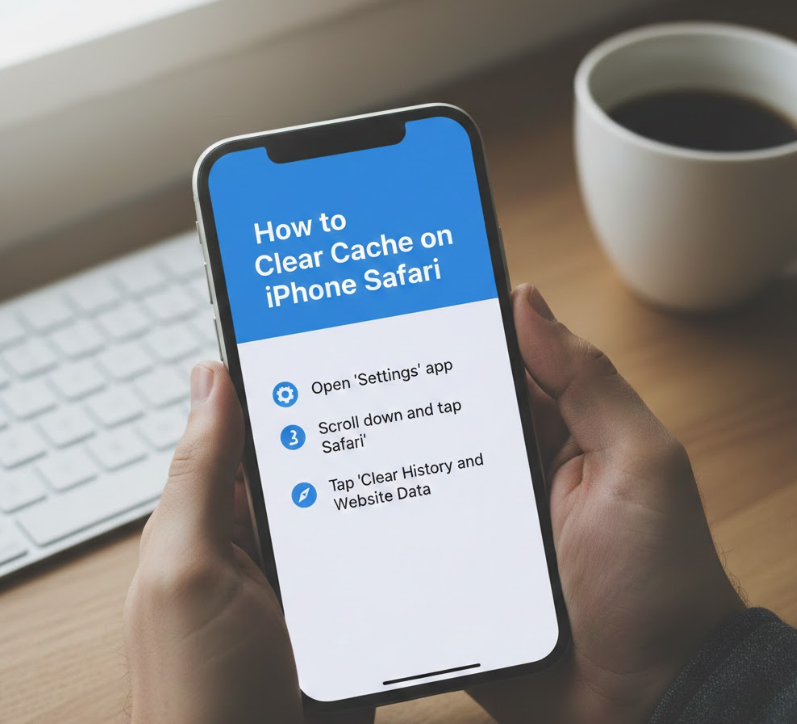
Safari is the default browser on iPhone and stores significant cache data, including browsing history, cookies, and saved website files. Over time, this cache can slow down page loading and cause websites to display incorrectly.
What Safari Cache Includes
Safari cache contains website images, scripts, cookies, login sessions, autofill data, and browsing history. These files help websites load faster but can also store outdated versions of pages.
Why Clearing Safari Cache Improves Performance
• Fixes websites not loading properly or showing outdated content
• Resolves login issues caused by corrupted cookies
• Frees storage space consumed by accumulated browsing data
• Enhances privacy by removing tracking cookies
• Improves Safari responsiveness on older iPhones
• Prevents browser crashes caused by overloaded cache
How to Clear Cache on iPhone Safari
• Open Settings and scroll down to Safari
• Tap Clear History and Website Data to remove cache, cookies, and browsing history
• Confirm the action when prompted to permanently delete stored data
• Restart Safari to allow fresh cache generation
• Log back into websites as needed after cache removal
• Adjust Safari privacy settings to limit future cache buildup
Clearing Safari cache is safe and recommended every few weeks, especially if you browse frequently or notice loading problems.
Also Read:- How to Minimize Pores: A Complete Dermatologist-Backed Guide
How to Clear Cache on iPhone Chrome
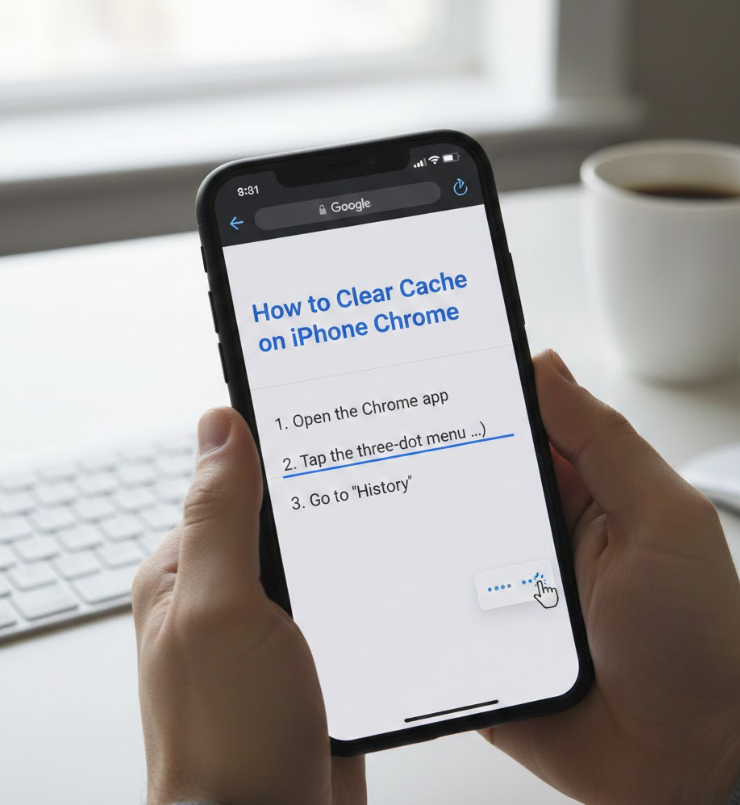
Google Chrome on iPhone manages cache independently from Safari. Clearing Chrome cache can resolve syncing issues, page errors, and slow browsing performance.
What Chrome Cache Stores on iPhone
Chrome cache includes saved website files, browsing history, cookies, autofill data, and cached images. While useful, these files can become bloated over time.
Benefits of Clearing Chrome Cache
• Fixes websites failing to load or refresh properly
• Improves Chrome speed and responsiveness
• Frees up hidden storage space
• Enhances privacy by removing tracking cookies
• Resolves account sync issues
• Prevents browser crashes caused by corrupted data
How to Clear Cache on iPhone Chrome
• Open the Chrome app on your iPhone
• Tap the three-dot menu in the bottom right corner
• Select Settings, then tap Privacy and Security
• Choose Clear Browsing Data
• Select Cached Images and Files (optionally cookies and history)
• Tap Clear Browsing Data again to confirm
Clearing Chrome cache does not remove bookmarks or saved passwords unless you select those options explicitly.
Also Read:- How to Jump Car: The Complete, Safe, Step-by-Step Guide
How to Clear Cache on iPhone Instagram

Instagram is one of the most cache-heavy apps on iPhone due to image and video content. Clearing Instagram cache can significantly improve app speed and reduce storage usage.
Why Instagram Cache Builds Up Quickly
Instagram stores high-resolution images, videos, stories, reels, and explore page data to reduce loading time. Over time, this cached content can occupy several gigabytes of storage.
Signs Instagram Cache Needs Clearing
• App lagging when scrolling or loading stories
• Excessive storage usage shown in iPhone Storage
• Reels and posts not refreshing correctly
• App crashes or freezes unexpectedly
• Battery drain during prolonged usage
• Upload failures caused by corrupted cache files
How to Clear Cache on iPhone Instagram
• Open Settings and go to General > iPhone Storage
• Scroll down and tap Instagram
• Tap Delete App to remove cached data completely
• Reinstall Instagram from the App Store
• Log back into your account securely
• Monitor storage usage to prevent rapid cache buildup
Unlike Android, Instagram does not offer an in-app cache clear option on iOS. Reinstalling the app is the safest and most effective solution.
Also Read:- How to Make Matcha Latte: A Complete Beginner-to-Expert Guide
Best Practices for Managing Cache on iPhone
Managing cache regularly helps maintain performance without risking important data.
• Restart your iPhone weekly to clear temporary system cache
• Update iOS regularly to improve cache handling and security
• Monitor storage usage under iPhone Storage
• Avoid third-party “cleaner” apps that violate Apple guidelines
• Clear browser cache monthly if you browse frequently
• Reinstall apps only when performance issues appear
Conclusion: Clearing Cache on iPhone the Right Way
Understanding how to clear cache on iPhone empowers you to maintain optimal performance, protect your privacy, and extend the life of your device. Whether clearing cache for apps, Safari, Chrome, or Instagram, following Apple-approved methods ensures safety and effectiveness.
Clearing cache isn’t something you need to do daily, but when performance issues arise, it can be a powerful solution. With the steps outlined in this guide, you now have expert-level knowledge to manage cache responsibly and confidently.
FAQs
Does clearing cache delete personal data on iPhone?
No, cache removal only deletes temporary files, not personal content.
How often should I clear cache on iPhone?
Every 1–2 months or when you notice performance issues.
Can I clear system cache on iPhone?
iOS manages system cache automatically; restarting the device helps.
Is it safe to clear browser cache frequently?
Yes, it improves performance and privacy without harming your device.
For More Updates Visit: Biomagazine
