


Sending an email is often instant, but regret can follow just as quickly. Whether it’s a typo, missing attachment, incorrect recipient, or sensitive information sent too soon, many users immediately search for how to unsend an email in Outlook. In professional and personal communication, one wrong email can cause confusion, embarrassment, or even serious consequences. That’s why understanding Outlook’s recall and delay features is essential for modern email users.
Microsoft Outlook does offer limited tools to help reduce email mistakes, but these tools work differently depending on the device, platform, and email environment. Many people assume there is a universal “undo send” button, but the reality is more complex. Outlook recall works only under specific conditions, while delay rules and platform-specific features act as preventive solutions rather than true unsend options.
This in-depth guide explains how to unsend an email in Outlook across Mac, desktop, web, app, and iPhone, using clear explanations, real-world examples, and actionable steps. By the end, you’ll understand what’s possible, what isn’t, and how to protect yourself from future email mistakes.
What Does “Unsend an Email in Outlook” Actually Mean?

Unsend does not always mean deleting an email after delivery. In Outlook, unsending refers to a combination of recall attempts, delivery delays, and cancellation options depending on the platform and email server.
Definition and Core Concept
Unsend in Outlook usually means attempting to recall a message or delay delivery before it reaches the recipient’s inbox. Outlook does not universally delete emails from external servers like Gmail or Yahoo.
Key Limitations Users Must Understand
The recall feature only works when both sender and recipient use Microsoft Exchange within the same organization. External email providers are not affected.
Why Outlook Works Differently Than Gmail
Unlike Gmail’s short “undo send” window, Outlook relies on server-side rules and recall commands that are more restrictive but still useful in enterprise environments.
Also Read:-How to Get Rid of Chipmunks: A Complete, Humane & Effective Guide
How to Unsend an Email in Outlook Desktop (Windows)
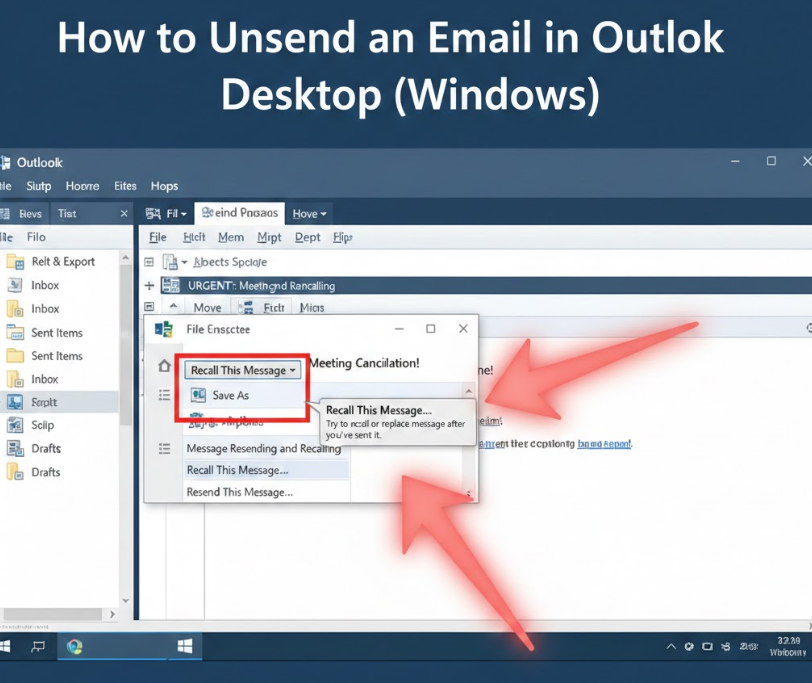
The Outlook desktop version for Windows is the only platform that supports the traditional Recall This Message feature.
Understanding Outlook Recall on Desktop
Outlook recall attempts to delete the unread email from the recipient’s inbox and optionally replace it with a corrected message.
When Outlook Recall Works Successfully
• Both sender and recipient must use Microsoft Exchange within the same organization
• The email must be unread
• The recipient must be using Outlook desktop
• Public folders or external addresses will not work
Step-by-Step Recall Process
• Open Outlook and go to Sent Items
• Double-click the email to open it fully
• Click File > Info > Recall This Message
• Choose to delete unread copies or replace the message
• Confirm and send recall request
Why Recall Often Fails
• Recipient already opened the email
• Email delivered to mobile app or web
• External domain recipients
Best Practices for Desktop Users
• Use recall immediately
• Notify recipients manually if recall fails
• Combine recall with delay rules for prevention
Also Read:- How to Flush Water Heater: A Complete Homeowner’s Maintenance Guide
How to Unsend an Email in Outlook Web (Outlook.com & Microsoft 365)
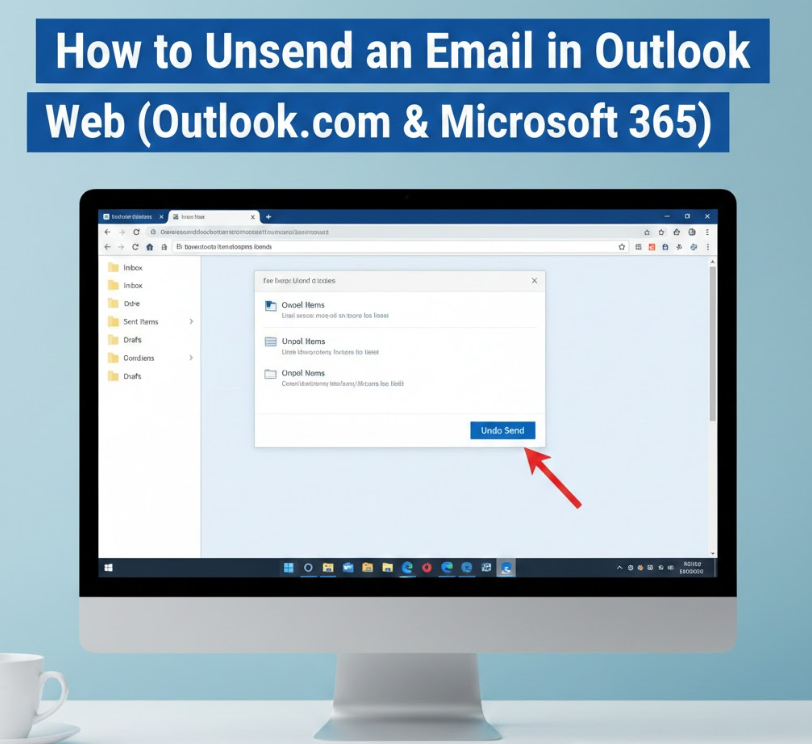
Outlook Web does not support recall, but it offers an Undo Send delay feature.
What Outlook Web Can and Cannot Do
Outlook Web cannot remove delivered emails, but it allows you to cancel sending within a short delay window.
Setting Up Undo Send in Outlook Web
• Go to Settings > Mail > Compose and Reply
• Enable Undo Send
• Set delay up to 10 seconds
• Save changes
How Undo Send Works in Practice
After clicking Send, Outlook displays an Undo option during the delay period, allowing instant cancellation.
Limitations of Outlook Web Undo Send
• Maximum delay is 10 seconds
• Once delivered, cancellation is impossible
• No recall for received emails
Best Use Case Scenarios
• Catching typos
• Preventing accidental sends
• Quick attachment mistakes
Also Read:- How to Grow Asparagus: A Complete Step-by-Step Guide for Beginners and Experts
How to Unsend an Email in Outlook Mac
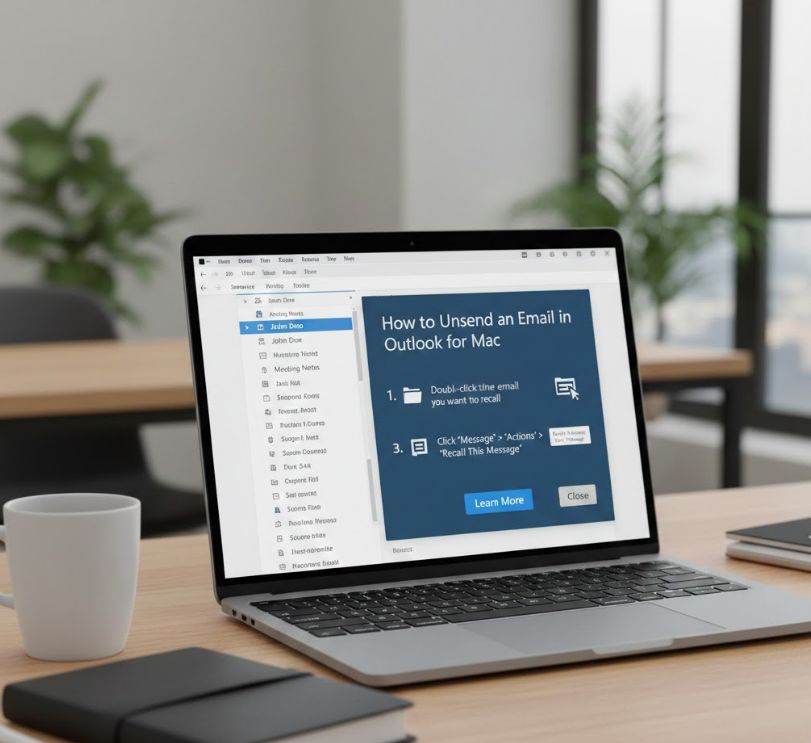
Outlook for Mac does not include the Recall feature, but users can rely on delayed sending rules.
Why Recall Is Not Available on Mac
Outlook Mac lacks Exchange-level recall integration found in Windows desktop versions.
Creating a Delay Rule on Outlook Mac
• Open Outlook > Preferences
• Go to Rules
• Create a new Outgoing Rule
• Set delay time (e.g., 2–5 minutes)
• Apply rule
How Delay Protects Against Mistakes
The delay temporarily holds the email in the Outbox, giving you time to stop it.
Real-World Use Examples
• Sending emails late at night
• Avoiding emotional responses
• Double-checking recipients
Limitations to Know
• Delay must be set in advance
• Cannot cancel after delivery
• Manual monitoring required
Also Read :- How to Stop Sneezing: A Complete, Doctor-Reviewed Guide for Instant and Long-Term Relief
How to Unsend an Email in Outlook App (Android & iOS)

The Outlook mobile app provides limited control but includes a Send Delay option.
Understanding Mobile Constraints
Mobile apps prioritize speed and simplicity, which limits recall functionality.
Enabling Send Delay in Outlook App
• Open Outlook App
• Go to Settings > Mail
• Enable Undo Send
• Choose delay (5–10 seconds)
How It Works in Real Time
After sending, an Undo button appears briefly, allowing cancellation before delivery.
Common Mistakes Users Make
• Assuming recall exists
• Missing the undo window
• Relying on mobile for sensitive emails
Best Practices for App Users
• Always enable delay
• Avoid urgent sends
• Review emails before sending
Also Read:- How to Get Rid of Carpenter Bees: The Complete Expert Guide
How to Unsend an Email in Outlook on iPhone
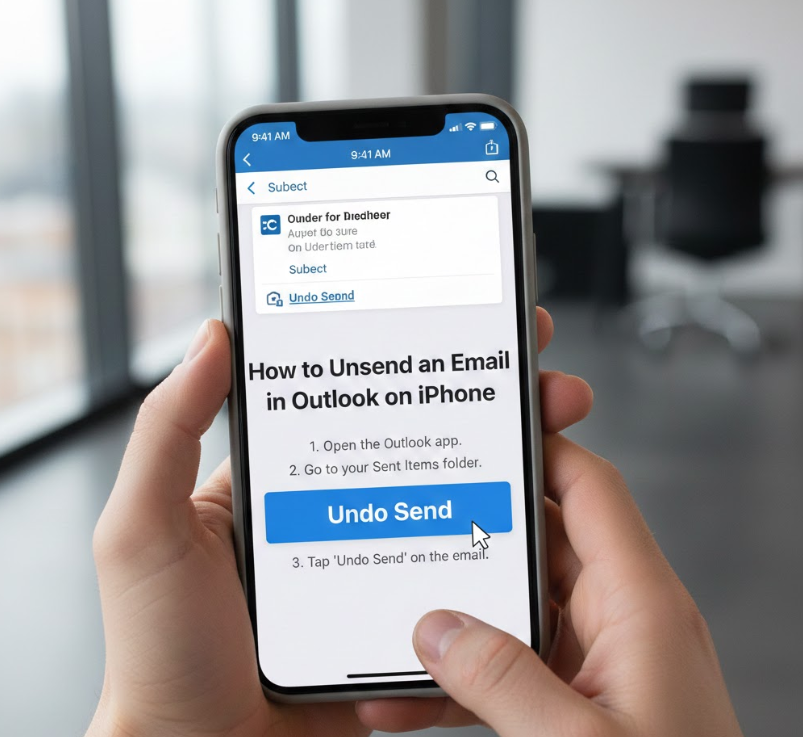
Outlook on iPhone behaves similarly to the general mobile app but has unique iOS behaviors.
iPhone-Specific Behavior Explained
iOS aggressively syncs emails, reducing recall opportunities.
Activating Undo Send on iPhone
• Open Outlook
• Tap Profile Icon > Settings
• Select Mail
• Enable Undo Send
Why Timing Matters More on iPhone
Push notifications and fast delivery reduce the cancellation window significantly.
Practical Use Scenarios
• Accidental quick replies
• Wrong contact selection
• Missing attachments
iPhone Limitations
• No recall
• Short delay window
• Cannot retrieve opened emails
Also Read:- How to Shrink Jeans: A Complete, Expert-Backed Guide for Perfect Fit
Preventing Email Mistakes Before They Happen

Prevention is the most effective strategy when learning how to unsend an email in Outlook.
Use Delay Rules Across Platforms
Delays create a safety buffer and work better than recall.
Enable Confirmation Prompts
Outlook rules can warn you before sending emails externally.
Best Professional Habits
• Proofread before sending
• Avoid emotional emails
• Double-check recipients
Organizational Email Policies
Many companies enforce delays and disclaimers to reduce risk.
Also Read:- How to Get Oil Stains Out of Clothes Complete Expert Guide
Outlook Recall vs Gmail Undo Send: Key Differences
Outlook recall is server-dependent, while Gmail uses a time-based undo.
Technical Comparison
Outlook recall depends on Exchange, Gmail uses delayed dispatch.
Reliability Differences
Gmail undo is more consistent, Outlook recall is conditional.
Which Is Better?
For enterprise environments, Outlook offers more control, while Gmail is simpler for individuals.
Conclusion:
Understanding how to unsend an email in Outlook is less about deleting messages and more about using the right tools at the right time. While true recall is limited to Outlook desktop within Exchange environments, delay rules and undo send features provide powerful prevention options across all platforms.
By combining recall (where available), send delays, and better email habits, users can significantly reduce mistakes. Whether you use Outlook on Windows, Mac, web, iPhone, or mobile app, mastering these features ensures greater control, professionalism, and peace of mind in your daily communication.
FAQs:
Can I unsend an email after it’s opened?
No, Outlook cannot retrieve opened emails.
Does recall work with Gmail recipients?
No, recall only works within Microsoft Exchange environments.
What is the safest way to avoid email mistakes?
Enable send delay rules and proofread carefully.
Is Outlook recall reliable?
It works only under specific technical conditions.
For More Updates Visit: Biomagazine
